Documentation

Setup, configuration, and troubleshooting for Commander, an AI coding workspace for multi-agent development on Mac.

Introduction

Commander is an AI coding workspace on macOS for multi-agent development. It combines review-first diffs, integrated git workflow, and system-level integration with your local tools in one focused flow.

Commander connects to your locally installed supported agent CLI and helps you run an end-to-end loop: prompt, review changes, and commit with confidence.

Note: This documentation focuses on setup, configuration, and troubleshooting. Feature walkthroughs and screenshots will be expanded over time.

Requirements

To use Commander, you need:

  • macOS 15.0 or later — Commander is built around modern macOS system integration and controls
  • One supported agent — Installed locally via its CLI. See setup links below.
  • Built-in accessibility support (recommended) — Commander is designed for clear, consistent navigation.

Supported Agents

Commander currently supports these agents through their local CLIs:

Authentication

Commander doesn't handle authentication directly. It uses your existing supported agent CLI installation, and that CLI manages authentication.

Commander never sees or stores your API keys. All credentials remain securely managed by your chosen CLI.

General Authentication Flow

Authenticate your selected CLI in Terminal first, then launch Commander. Commander will use that existing authenticated session.

If auth fails in Commander, re-run the CLI directly in Terminal and complete sign-in there.

Configuration

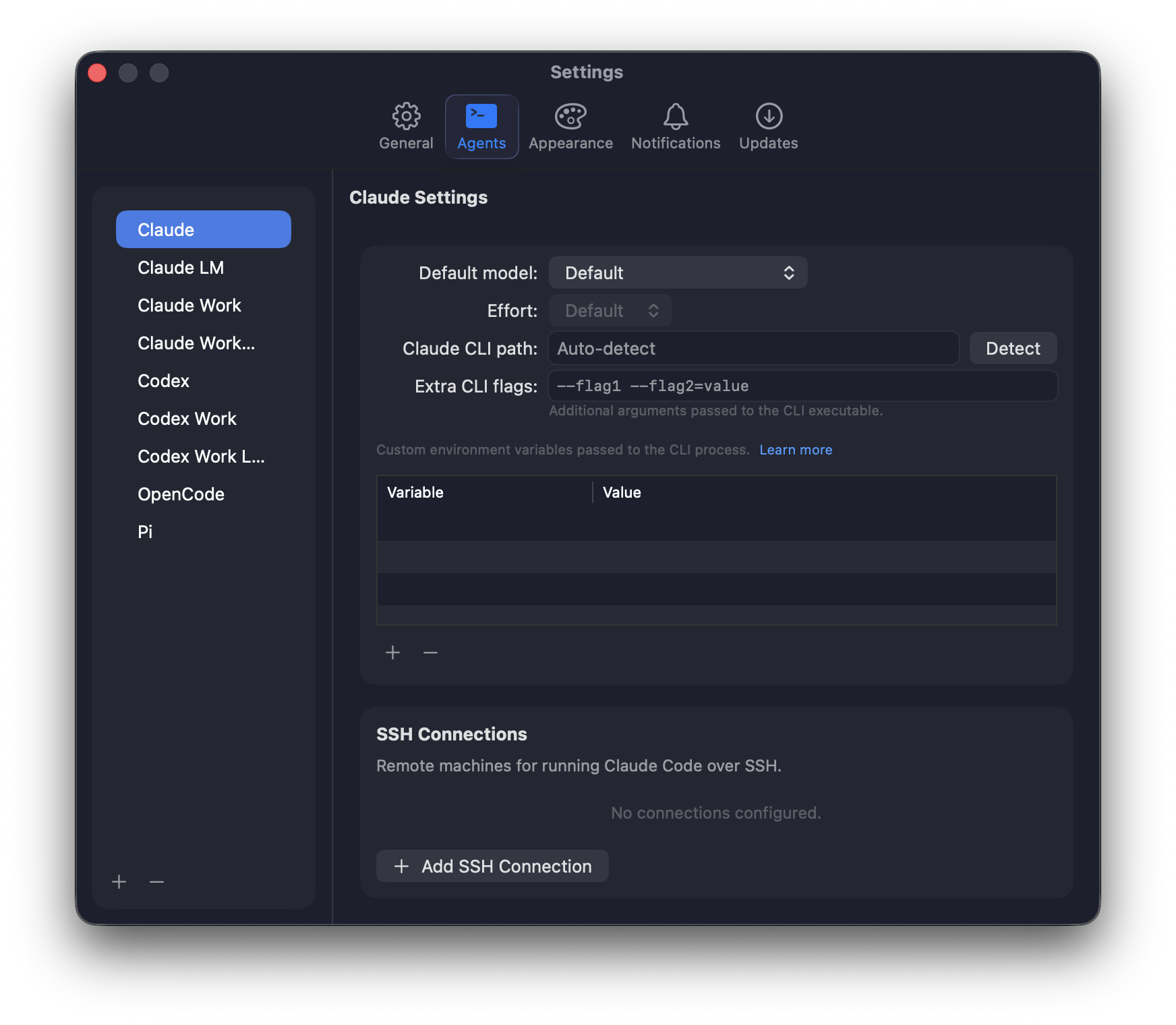
Open Commander's settings via Commander → Settings (or ⌘,) to configure your CLI integration.

CLI Path

Commander needs to know where your selected agent CLI is installed on your system. By default, it looks in common locations like /opt/homebrew/bin/ (Homebrew on Apple Silicon) or /usr/local/bin/.

  • Detect — Click to automatically find the CLI on your system
  • Manual path — Enter the full path if auto-detection doesn't work

To find your CLI path manually, run one of the following in Terminal:

  • which <your-cli-binary> (for example, which claude or which codex)

Environment Variables

You can pass custom environment variables to the CLI process. This is useful for:

  • Setting API keys (for example, provider-specific API key variables your CLI expects)
  • Configuring proxy settings
  • Custom CLI configuration

Use the + and buttons to add or remove environment variables.

AWS Bedrock (custom model ARNs)

Claude Code can talk to AWS Bedrock by using a Bedrock model ARN (often an inference profile ARN) as the configured model. You can see what your Claude Code CLI uses in ~/.claude/settings.json:

jq -r '.model' ~/.claude/settings.json

Example value:

"arn:aws:bedrock:eu-west-1:xxxxxxxxxxxx:application-inference-profile/yyyyyyyyyyy"

When you launch Claude Code with a Bedrock ARN, it will authenticate with AWS (typically via AWS SSO).

Commander selects the model based on the menu bar dropdown (Sonnet / Opus / Haiku). If you want those selections to route to Bedrock, override the default model identifiers Claude Code uses for each selection by setting these environment variables in Commander:

  • ANTHROPIC_DEFAULT_SONNET_MODEL
  • ANTHROPIC_DEFAULT_OPUS_MODEL
  • ANTHROPIC_DEFAULT_HAIKU_MODEL

Recommended setup:

  1. Copy your Bedrock ARN from ~/.claude/settings.json.
  2. In Commander → Settings → Environment Variables, add ANTHROPIC_DEFAULT_SONNET_MODEL and set it to the ARN.
  3. Select Sonnet in Commander's menu bar model dropdown.

If you also set ANTHROPIC_DEFAULT_OPUS_MODEL and/or ANTHROPIC_DEFAULT_HAIKU_MODEL to the same ARN, you can switch between Sonnet/Opus/Haiku in Commander while still using Bedrock for all of them.

If you see 400 The provided model identifier is invalid., it usually means Commander is still sending a non-Bedrock model identifier; verify the corresponding ANTHROPIC_DEFAULT_*_MODEL variable is set for the model you selected in the menu bar.


Actions & Scripts

Actions are user-defined scripts you can run from the toolbar Run button and the Actions menu.

They are configured per project/worktree in .commander/actions.json.

Configuration File

{
  "actions": [
    {
      "name": "Run",
      "script": "actions/2F0B4A6D-A8C9-47B7-9505-650C31234C50.sh",
      "icon": "play.fill",
      "background": false
    }
  ]
}
  • name: display name in the toolbar and menu (also used for worktree override matching)
  • script: script path, relative to the .commander/ folder
  • icon: optional SF Symbol name shown in the menu/toolbar
  • background: if true, run as a background process; if false, run in the terminal pane

If background is omitted, Commander treats it as false.

Script Path Rules

  • Relative paths resolve from the .commander/ directory that contains actions.json.
  • Absolute paths are supported.
  • Tilde paths like ~/scripts/run.sh are expanded to your home directory.

By convention, Commander creates new script paths using UUID filenames under .commander/actions/.

Project vs Worktree Resolution

  1. Commander loads project-level actions first.
  2. Commander then loads worktree-level actions and overrides project actions with the same name.
  3. If an action named Run exists, Commander places it first.

Action Environment Variables

Commander injects these variables for every action script:

  • COMMANDER_ACTION_NAME
  • COMMANDER_WORKSPACE_PATH
  • COMMANDER_CONTEXT_NAME
  • COMMANDER_CONTEXT_TYPE (project or worktree)
  • COMMANDER_BRANCH (for git contexts)

Terminal actions receive these as inline command-scoped variables. Background actions receive them via process environment variables.

Authoring Scripts in Commander

  • The Actions editor can create/edit scripts inline.
  • New scripts start with a #!/bin/zsh template.
  • On save, Commander creates parent folders as needed and sets script permissions to executable (755).

Troubleshooting

CLI not found

If Commander can't find your CLI, make sure it's installed and accessible from your terminal:

  • Run <your-cli-binary> --version to verify installation.
  • If it's not installed, use the setup guidance in Supported Agents.

Authentication issues

If you're having trouble authenticating, run your CLI directly in your terminal to re-authenticate:

  • Run <your-cli-binary> and complete the provider login flow.

Commander uses your CLI's authentication, so fixing it in the terminal will fix it in Commander.

Is my code sent to external services?

Commander itself doesn't send any data. Your selected CLI may send code context to its provider to generate responses.

How do I update Commander?

Download the latest version from the download section or install via Homebrew: brew install commander. Commander will notify you when updates are available.

Using AWS Bedrock

If you're using Claude via an AWS Bedrock model ARN, see Configuration → AWS Bedrock (custom model ARNs) for the recommended ANTHROPIC_DEFAULT_*_MODEL environment variable setup.

Actions menu is empty

Create .commander/actions.json in your project or worktree and add at least one valid action entry. You can also open Actions → Edit Actions... from the toolbar menu to create one.

Action script does not run

  • Check that script points to the expected file relative to .commander/, or use an absolute path.
  • Confirm the script starts with a valid shebang like #!/bin/zsh.
  • Ensure the file is executable if created outside Commander: chmod +x /path/to/script.sh.

Config error in Actions menu

If Commander shows a project/worktree config error in the Actions menu, validate .commander/actions.json for JSON syntax and field type issues.